1. Install Node.js & Firebase CLI
Download Node.js from the official site: https://nodejs.org/en/download
Click Windows Installer (.msi) and follow instructions.
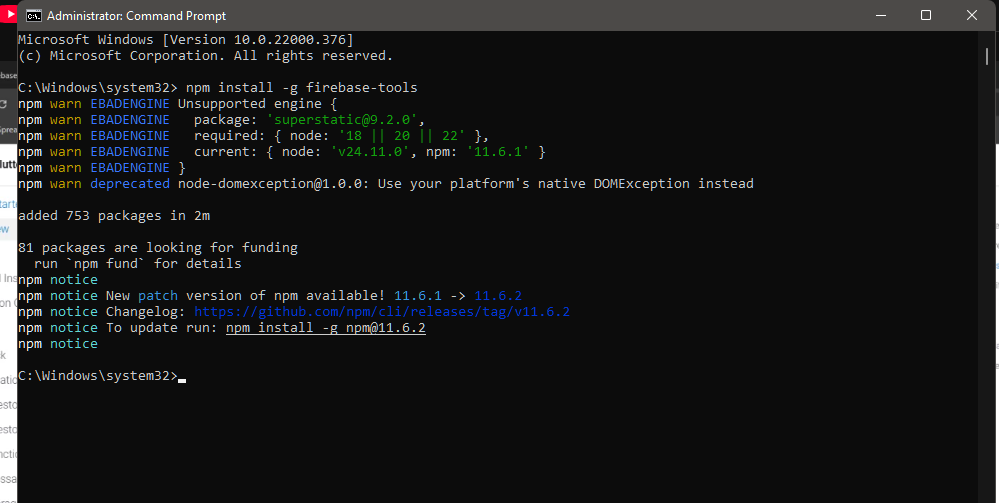
Firebase CLI installation command:
npm install -g firebase-tools
Explanation: The -g means global install, allowing you to run Firebase commands from any folder.
2. Install Git
Download and install Git for Windows: https://git-scm.com/install/windows
After installing, add Git's bin and cmd folders to your Environment Variables → Path so you can use git commands anywhere.
C:\Program Files\Git\bin
3. Login to Firebase
Run command:
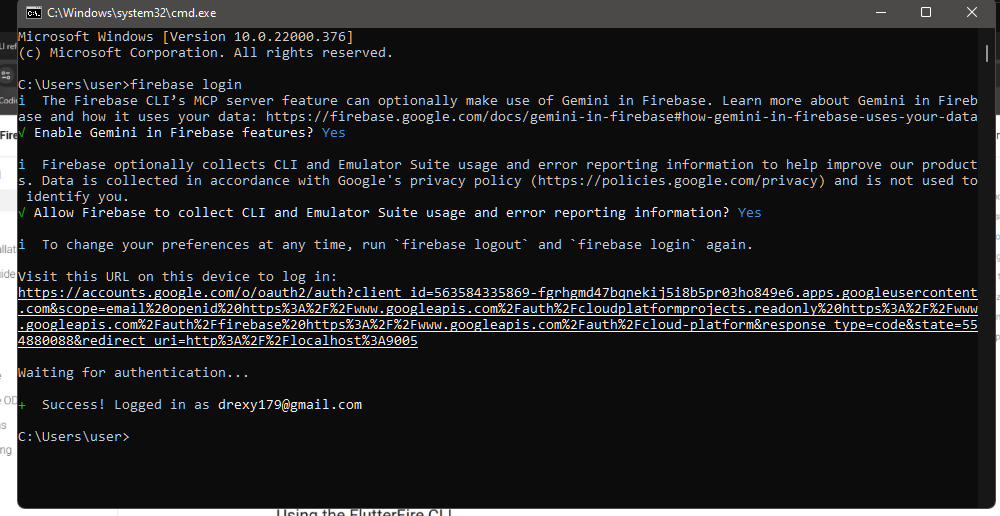
firebase login
You may be asked about Gemini (optional). Press y or n.
A browser window opens for Google login. After login, CMD shows:
Success! Logged in as your-email@gmail.com
4. Create Firebase Project
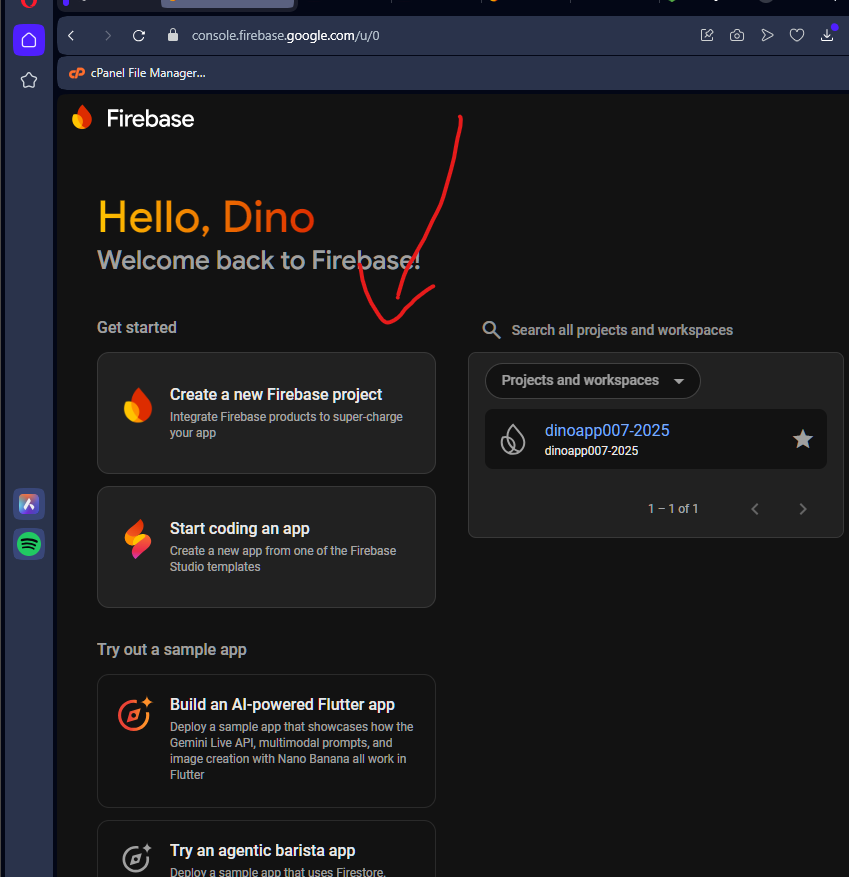
Go to Firebase Console: https://console.firebase.google.com
- Click Create Project
- Enter project name
- Click Create
5. Setup Flutter Project & Add Firebase Core
Create a new Flutter project:
flutter create your_project_name
Navigate to your project folder:
cd your_project_name
Install Firebase core package:
flutter pub add firebase_core
Explanation: This downloads the firebase_core package and adds it to your Flutter project, enabling your app to connect to Firebase.
6. Install FlutterFire CLI Globally
Run globally:
dart pub global activate flutterfire_cli
It will give a path like:
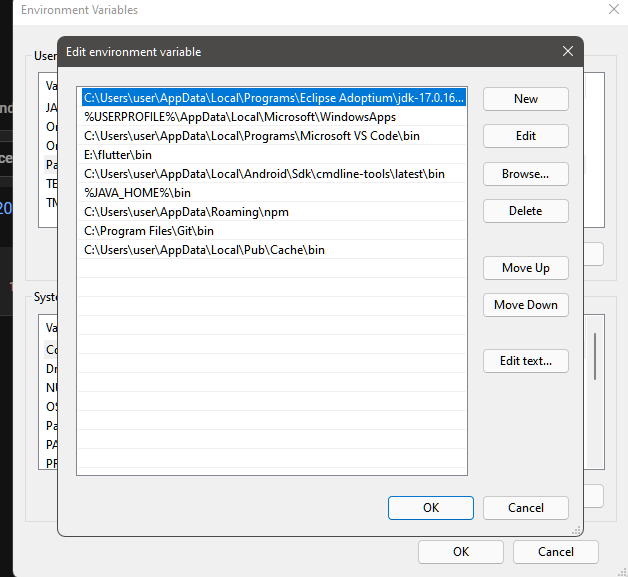
C:\Users\user\AppData\Local\Pub\Cache\bin
Note: Replace user in the path above with your actual Windows username when adding to Environment Variables → Path.
Add this path to Environment Variables → Path so flutterfire works anywhere.
7. Configure FlutterFire
Navigate to your Flutter project folder (the project you created in step 5) in your terminal/command prompt and run:
flutterfire configure
Or specify project directly:
flutterfire configure --project your-project-name
Select the platforms (Android, iOS, Web, macOS) and press Enter. This generates lib/firebase_options.dart.
8. Demo: Firebase Connection
Test your Firebase connection with this code:
import 'package:flutter/material.dart';
import 'package:firebase_core/firebase_core.dart';
import 'firebase_options.dart';

void main() async {
  WidgetsFlutterBinding.ensureInitialized();
  await Firebase.initializeApp(
    options: DefaultFirebaseOptions.currentPlatform,
  );
  runApp(MyApp());
}

class MyApp extends StatelessWidget {
  @override
  Widget build(BuildContext context) {
    return MaterialApp(
      home: Scaffold(
        appBar: AppBar(title: Text('Firebase Demo')),
        body: Center(child: Text('✅ Firebase Connected Successfully!', style: TextStyle(fontSize: 18))),
      ),
    );
  }
}